Saturday, October 29, 2016

Photoshop quiz_oct 31_nov 4

Digital Arts & Design 1
Quiz_oct 31_nov 4_2016

Your name:_____________________________________Block:__________


Directions:

Go to stevecampbell.hillwood.blogspot.com

in the help column, go to photoshop tools

Scroll down until you see pictures and explanations of the tools


1-8 worth 4 points each

1. Draw the move tool

2. What is it used for?

3. Draw the Horizontal Type Tool

4. What is it used for?

5. Draw the zoom tool

6. What is it used for?

7. Draw the foreground and background color swatches tool

8. If you used the  foreground col that is shown here, what color would you get in your Photoshop document?


9. Create a new Photoshop document

Use help if you need to

Name: quiz_oct 31_nov 4 (2 points)
Width: 10 inches (2 points)
Height: 10 inches (2 points)
Resolution: 72 (2 points)

Save into your documents folder (2 points)

In the Photoshop Options Bar (top of screen) go to Window
Check (unless already has checkmark) Workspace>Essentials, Layers, Application Bar, Options, Tools

Select the Move Tool

Open Google Chrome

Find a photo you like. Be sure it is high resolution (over 1000 pixels)
Drag it to your desktop
Open it by dragging it onto the Photoshop icon
Copy it into the  quiz  document (2 points)

Save

Select the Move Tool if it is not selected
Check Auto Select>Layer

Go to Edit>Free Transform
Go to View>Fit on Screen
Scale to image down, in proportion, by pressing and holding the Shift key
Use the Move Tool to move the image in the document (6 points)

Repeat the above and place 4 more different images in the document (24 points)

Resize one image so that it is much larger than the others (10 points)

Type your first and last name in the document.
Select Helvetica, 18 point, and color your name red. (6 points)

Save into your documents folder (10 points)

Show me when you are finished


Sunday, October 23, 2016

photoshop skills practice_copy, paste and scale_october 17_28


SSA and Tardies

For tardies, 3 times, then referral

SSA_follow the guidelines or referral....sorry

Phones should be used for classwork only. If your phone is visible, you should be able to explain how you are using it for class work.

Headphones, earbuds, etc. are not allowed in class.


Bathroom pass_sign out and sign back in

If you have trouble with your computer or Photoshop, be sure we fix that at the beginning of class. If you wait until I come to check work that is too late.

ADC/ACT word in sketchbook
http://stevecampbellhillwood.blogspot.com/2016/08/vocabulary-paper-sketchbook_22.html

ACT words
http://stevecampbellhillwood.blogspot.com/2014/08/act-words.html

Go to stevecampbellhillwood.blogspot.com
Bookmark this site

Standards:

7) Analyze the elements of design by evaluating their purposes and applications in a variety of design applications.
8) Research rules of composition (such as the rule of thirds) and explain how the rules govern the elements and principles of design.
23) Apply the design process to complete projects of increasing complexity and of varying applications such as print, web, film, and marketing communications.

What I want you to know or do:
1. Create and save a Photoshop document correctly. (Correct size and into a folder)
2. Communicate the meaning of the art elements and principles of design.

3. Use Photoshop tools correctly

For help............
Your buddies and 

http://hillwoodphoto2.blogspot.com/2016/09/help.html


A suggestion: Work with someone. One of you pull up the directions on one computer, the other do the Photoshop document. Then switch. Each person should create a Photoshop document.


Assignment

Complete practice 1, 2 and 3 if you have not.
No make ups after this week.

Complete the Halloween assignment.
http://stevecampbellhillwood.blogspot.com/2016/10/halloween.html
Create a new Photoshop document
Name: practice 3
Width: 17
Height: 11
Resolution: 72
Color Mode: RGB Color
Save into your documents folder

Note: Practice 1 size was 14 x 11.
          Practice 2 size was 11 x 14.

In the Photoshop Options Bar (top of screen) go to Window
Check the following (unless already has checkmark) :
Workspace>Essentials
Layers
Application Frame
Options
Tools

Select the Move Tool

Open Google Chrome
Find a photo you like. Be sure it is high resolution (over 1000 pixels)
Drag it to your desktop
Open it by dragging it onto the Photoshop icon
Copy it into the practice 2 document

Save

Select the Move Tool if it is not selected
Check Auto Select>Layer

Go to Edit>Free Transform
Go to View>Fit on Screen
Scale the image down, in proportion, by pressing and holding the           Shift key
When the image is the size you want, click the check mark in the         Options Bar or press the Return key
Use the Move Tool to move the image inside the document

Repeat the above and place 9 more different images in the document

Save into your documents folder

Tip: Click on eyeballs in layers palette to turn the layers visibility off and then back on.


halloween

If Halloween conflicts with your beliefs, convictions or credos, feel free to substitute your name and another type of photo as you follow the directions below. 


Open Photoshop

Window>Workspace>Essentials
Window>Check Layers, Application Frame, Options and Tools 


Make a new Photoshop document

Width: 11
Height: 3
Resolution: 200


Save as Halloween into your documents folder

Select the Type Tool. Press the caps lock key for all caps.

Select this typeface. Impact. 60 pt. Color: Black


Type: HALLOWEEN

Edit>Free Transform.

Resize HALLOWEEN to fill the document space.


Press the enter/return key

Find a Halloween-type photo in Google images

Place the photo in the Photoshop document. Remember to drag this photo onto the Photoshop icon before you place it in the Photoshop document.

Resize the photo so that it covers the entire document

Place your cursor on the line separating the photo layer from the HALLOWEEN layer.

Press and hold the option key on your keyboard.

Click


Saturday, October 1, 2016

principles of design 2016


SSA and Tardies
For tardies, 3 times, then referral
SSA_follow the guidelines or referral....sorry

Phones should be used for classwork only. If your phone is visible, you should be able to explain how you are using it for class work.

Headphones, earbuds, etc. are not allowed in class.


Bathroom pass_sign out and sign back in

If you have trouble with your computer or Photoshop, be sure we fix that at the beginning of class. If you wait until I come to check work that is too late.

ADC/ACT word in sketchbook
http://stevecampbellhillwood.blogspot.com/2016/08/vocabulary-paper-sketchbook_22.html

Go to stevecampbellhillwood.blogspot.com
Bookmark this site

Standards:

7) Analyze the elements of design by evaluating their purposes and applications in a variety of design applications.
8) Research rules of composition (such as the rule of thirds) and explain how the rules govern the elements and principles of design.
23) Apply the design process to complete projects of increasing complexity and of varying applications such as print, web, film, and marketing communications.

What I want you to know or do:
1. Create and save a Photoshop document correctly. (Correct size and into a folder)
2. Communicate the meaning of the art elements and principles of design.
3. Use Photoshop tools correctly


What I want you to do today:

The principles of design are guidelines for how to arrange the art elements to create "good" design composition.

The principles of design

Balance: a principle of design that refers to the equalization of elements in a work of art. There are three types of balance
Asymmetrical-balance in which one side of the composition appears  different from the other side while remaining   balanced with it.
Symmetrical- balance in which both sides are identical.
Radial-balance based on a circle, with features radiating from a central point.

Contrast: a principle of design that refers to differences in values, colors, textures, and other elements in artwork to  achieve emphasis and interest.

Emphasis: a principle of design by which the artist or designer may use opposing sizes or shapes, contrasting colors, or other means to place greater attention on certain areas or objects in a work of art. Emphasis is achieved by dominance  and subordination, bright against dull, light on dark, large among small, etc.

Movement: a principle of design that refers to the arrangement of parts in artwork to create a flow of the viewer’s eye  through the repeated arrangement of line, shape, color, texture or value; through the orderly positioning of objects;  through contrasting positive and negative shapes; through contrasting sizes; or through gradation of colors and values.

Pattern: a principle of design in which combinations of lines, colors, and shapes are repeated. These repetitions create rhythm in a work of art.

Unity: a principle of design that refers to a sense of wholeness or oneness in an artwork. In other words, all the parts look  like they belong together. Unity involves the co-ordination of all these parts to communicate the idea of the artwork.

No  one element in a design is an entity in itself. Each element is positioned and organized to contribute to the harmony  and unity of the total design.

Unity requires varying emphases so that the design has dominant and subordinate parts.

Unity may be achieved by repetition of color, texture, value, shape, and/or line; by similarity-the colors, shapes or textures  all resemble each other; and by grouping or overlapping visual elements.


Principles of Design assignment

Illustrate the meaning of the principles of design by combining images of the principles with their written definitions. Find images on-line.
Use the definitions above.

For your typeface, choose Times, regular, 14 pt. You choose the color.

Open Photoshop

Go to Window>Workspace>Essentials

Open your document.
Name: Principles of Design
Width: 17 inches
Height: 11 inches
Resolution: 72
Color Mode: RGB Color
Background Contents: White

Save it into your documents folder. 
File>Save As

For help............
Your buddies and 
http://hillwoodphoto2.blogspot.com/2016/09/help.html


5. To finish, arrange all the principles and definitions together so that someone looking at your document would understand what the art elements are. You will need to move and resize. 


Important tip: Go to Window>Layers and be sure Layers is checked. Look at your Layers Palette. Click on an eyeball to turn layers off. This simplifies your work. Click on the eyeball again to turn it back on.


Saturday, September 24, 2016

september 26_30

SSA and Tardies
3 times, then referral

Phones should be used for classwork only. If your phone is visible, you should be able to explain how you are using it for class work.

Headphones, earbuds, etc. are not allowed in class.


Bathroom pass_sign out and sign back in

If you have trouble with your computer or Photoshop, be sure we fix that at the beginning of class. If you wait until I come to check work that is too late.

ADC/ACT word in sketchbook
http://stevecampbellhillwood.blogspot.com/2016/08/vocabulary-paper-sketchbook_22.html

Go to stevecampbellhillwood.blogspot.com
Bookmark this site

Are you passing this class????????????
Your last grade this 9 weeks is for your Art Elements Photoshop document. It was due on September 23. If you have not turned it in and your grade was 100, your grade is now 87. Check your grades.

Today

Complete this assignment

development of design
http://stevecampbellhillwood.blogspot.com/2015/10/standard-3development-of-design.html

careers
http://stevecampbellhillwood.blogspot.com/2011/01/graphic-design-career.html

labor
http://stevecampbellhillwood.blogspot.com/2016/09/qpi-7all-aspectsitem-8labor.html

Saturday, September 17, 2016

art elements in Photoshop

SSA and Tardies
3 times, then referral

Phones should be used for classwork only. If your phone is visible, you should be able to explain how you are using it for class work.

Headphones, earbuds, etc. are not allowed in class.


Bathroom pass_sign out and sign back in

If you have trouble with your computer or Photoshop, be sure we fix that at the beginning of class. If you wait until I come to check work that is too late.

ADC/ACT word in sketchbook
http://stevecampbellhillwood.blogspot.com/2016/08/vocabulary-paper-sketchbook_22.html

Go to stevecampbellhillwood.blogspot.com
Bookmark this site

Standards:
1) Demonstrate the ability to comply with personal and environmental safety practices associated with art and design applications: the use of adhesives; hand tools; machines; and the handling, storage, and disposal of chemicals/materials in accordance with local, state, and federal safety and environmental regulations. Complete a safety test with 100 percent accuracy.
6) Categorize and describe the principles of design.
7) Analyze the elements of design by evaluating their purposes and applications in a variety of design applications.
8) Research rules of composition (such as the rule of thirds) and explain how the rules govern the elements and principles of design.
23) Apply the design process to complete projects of increasing complexity and of varying applications such as print, web, film, and marketing communications.

What I want you to know or do:
1. Create and save a Photoshop document correctly. (Correct size and into a folder)
2. Communicate the meaning of the art elements and principles of design.
3. Use Photoshop tools correctly


What I want you to do today:

Finish your Art Elements document.

Open Photoshop

Go to Window>Workspace>Essentials

Open your document.
Name: Art Elements
Width: 17 inches
Height: 11 inches
Resolution: 72
Color Mode: RGB Color
Background Contents: White

Save it into your documents folder. 
File>Save As

Finish this assignment by adding the following. Use images and definitions as you have with the other art elements....line, organic shape, geometric shape. 

For help............
Your buddies and 
http://hillwoodphoto2.blogspot.com/2016/09/help.html

1. Google positive and negative space.


Place a positive and negative space image on your document.

You will probably be on the Move Tool already.
If not select it. Where is the Move Tool?
http://stevecampbellhillwood.blogspot.com/2016/08/photoshop-cs6-creative-cloud-tools.html


Check Auto Select>Layer 

Move the image if you want to.

Resize the image if you need to.
http://stevecampbellhillwood.blogspot.com/2015/12/resizing-photo.html

Go to the Horizontal Type Tool. Where is it?

For your typeface, choose Helvetica, regular, 14 pt. You choose the color.


Click hold and drag to make a text box, about the same size as the image you have just placed.

Go to the Navigator tool. 
Window>Navigator. This at the very top Photoshop menu.


Click on the "mountains" to make your document view larger or smaller.

Type: Space: an art element that indicates areas in a drawing (positive and negative) and/or the feeling of depth in a two-dimensional work of art.
Positive space-the objects depicted in a work of art, as opposed to the background or area around the objects.
Negative space-the area around the objects in artwork, often called the background.
Show all three, space, positive space and negative space

2. Google texture.


Place a texture image on your document.

Type:
Texture: an art element that refers to the surface quality as being rough, smooth, soft, etc. It can be actual or implied.

3. Google value scale.

Place a value scale image on your document. 

Use a value scale


Type:
Value: an art element that refers to the lightness or darkness of a color or shade.

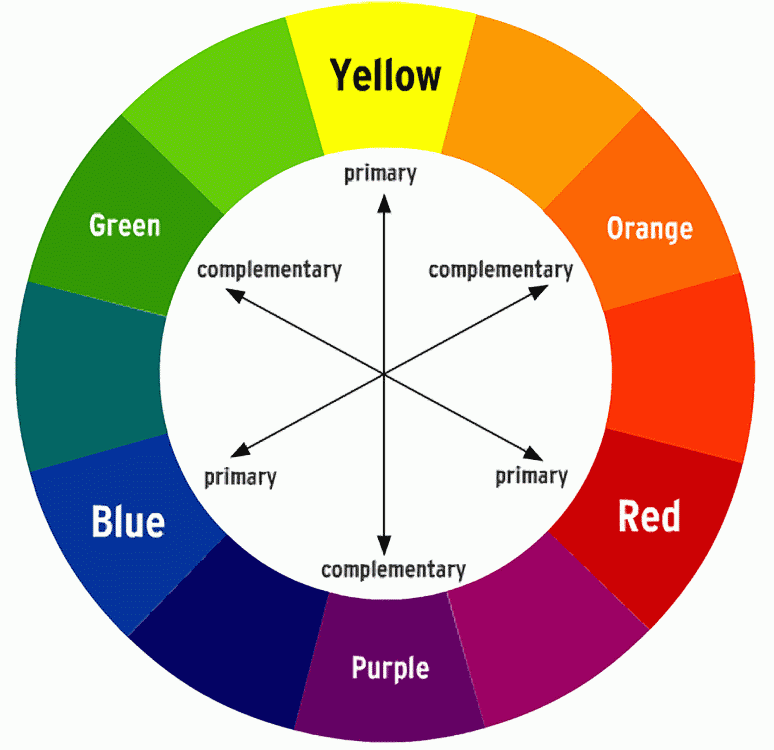
4. Google Color Wheel

Use a color wheel. 


Type:
Color: an art element that indicates natural and manufactured objects as being red, yellow, green or any other name that identifies their hues. Hue is another name for color.


5. To finish, arrange all the art elements and definitions together so that someone looking at your document would understand what the art elements are. You will need to move and resize. 

Important tip: Go to Window>Layers and be sure Layers is checked. Look at your Layers Palette. Click on an eyeball to turn layers off. This simplifies your work. Click on the eyeball again to turn it back on.

Wednesday, September 14, 2016

pasting a photo into a Photoshop document

Open the Photoshop original document you want to paste an image into. Open by dragging to the Photoshop icon.


Open the image you want to paste by dragging it to the Photoshop icon.

Click and hold on the name tab of the photo you want to paste, a rock in this example. Drag it slightly downward and to the right so that you see both documents.


Be sure you are on the Move Tool and that Auto Select>Layer is selected.
Click, hold and drag the new image into the original one.


Or..........
Click hold and drag the new image from its layers palette into the original document